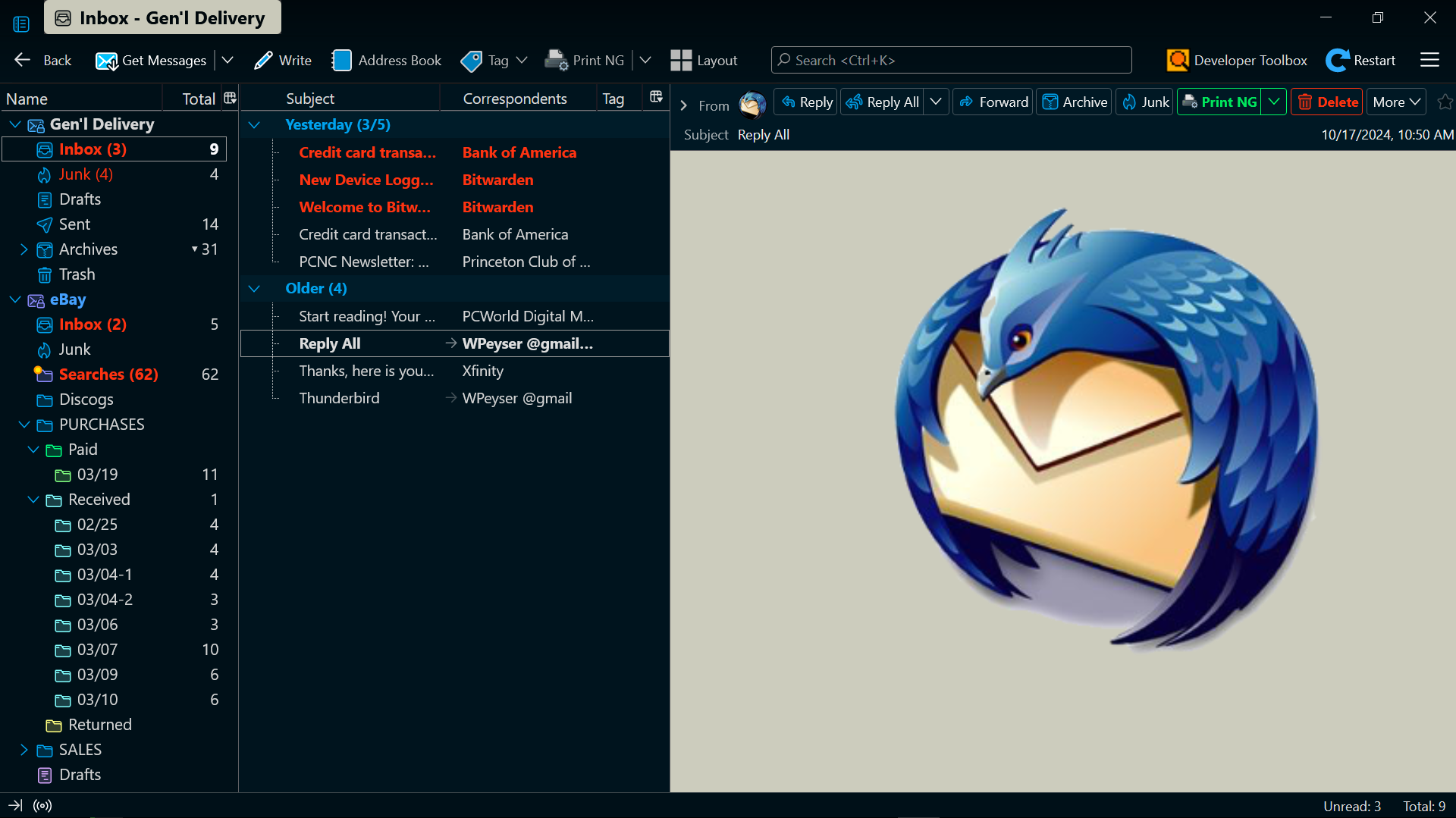
Thunderbird Mail window
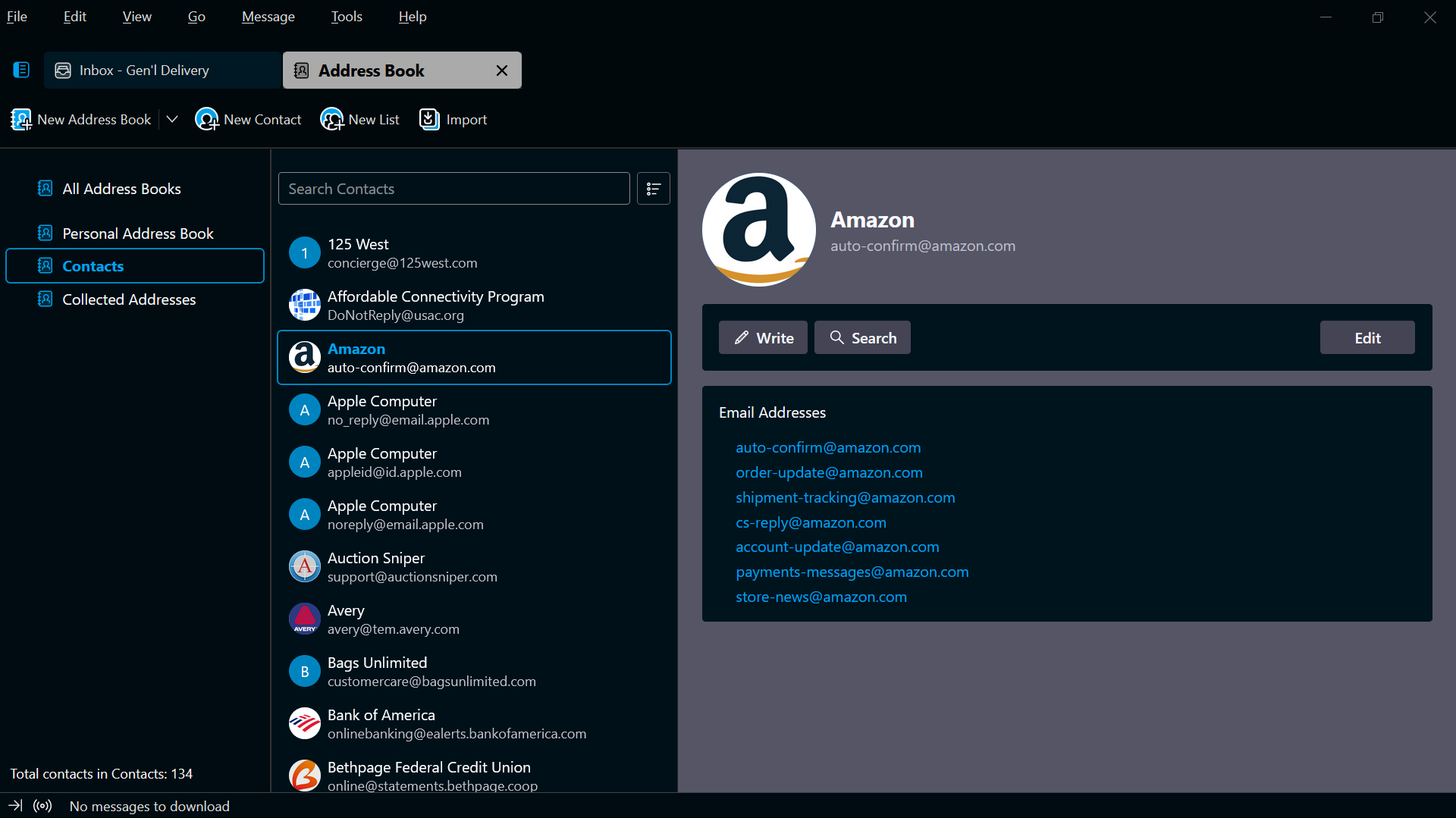
Thunderbird Address Book
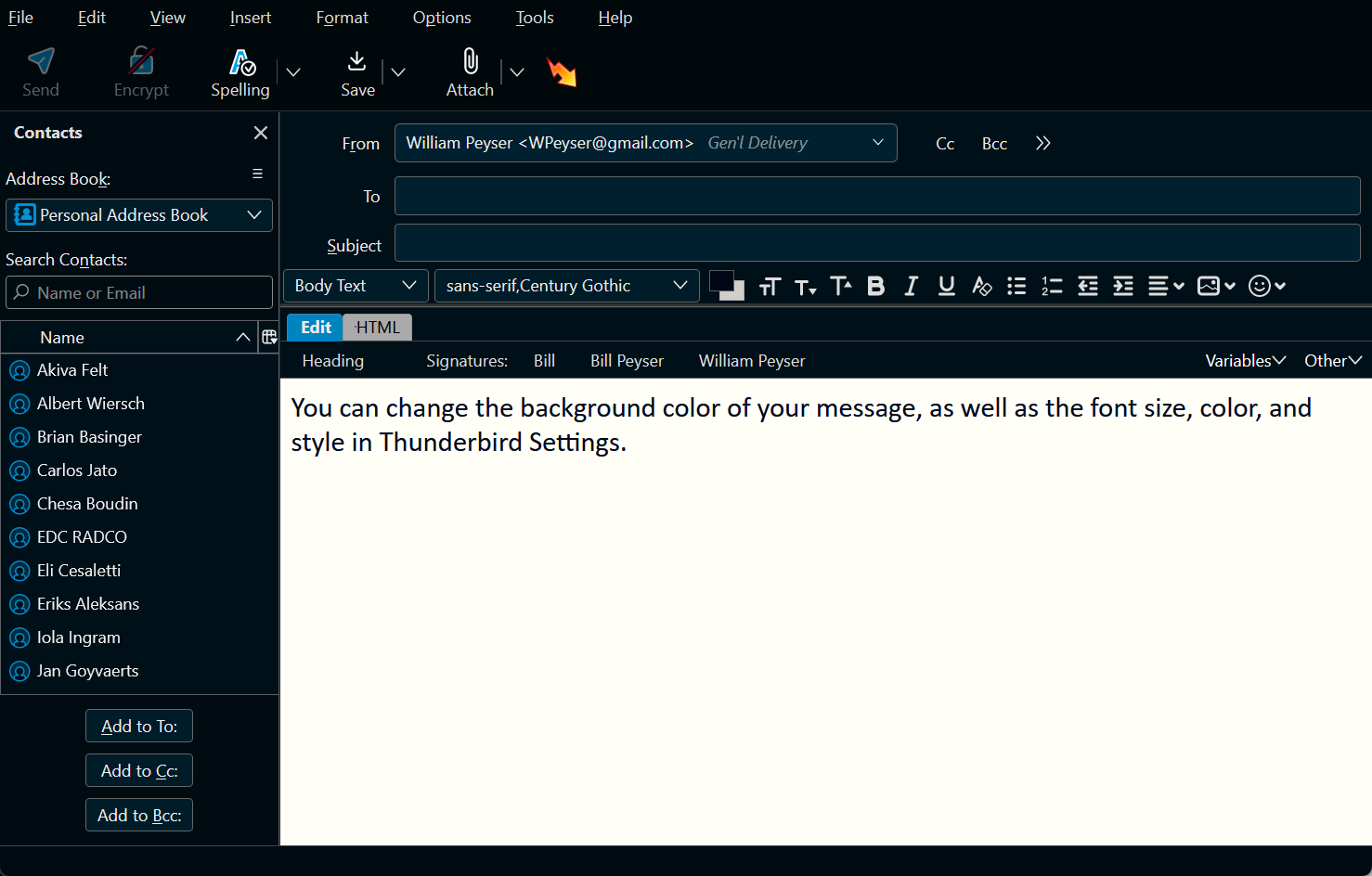
Thunderbird Compose window
 Install Thunderbird 102 Dark Theme
• Step 1: Turn on Thunderbird’s built-in dark theme.
• Step 2: Enable Thunderbird to read customization files.
• Step 3: Create a chrome folder in your Thunderbird profile folder.
• Step 4: Extract the customization files and move them into your chrome folder.
• Step 5: Restart Thunderbird to apply the new dark theme.

 Thunderbird 102 installer
• • •
Customization files and instructions
Thunderbird 102 installer
• • •
Customization files and instructions
 Too Dark?
This dark theme was created using a 40-inch TV as a monitor. TVs are brighter than standard computer monitors, so if you’re using a standard computer monitor, you’ll probably need to increase its brightness.
 Install your Start page
If you want to use the Start page in the image at the top of this page as your Start page, you can download it in the zipped folder below. Full installation instructions are included.
 Folder Pane mail folders icon color
You can conform the color of as many of the mail folder icons as you wish to this dark theme’s blue accent color. Right-click each folder and select Properties from the menu. In the Folder Properties dialog, click the Icon Color box. In the Color window, enter Red 0, Green 162, Blue 237, and click OK and OK again.
To color ALL the mail folder icons blue, including the icons for future folders, enter the following code in your userChrome.css file:
/* Color the mail folder icons */
#folderTree treechildren::-moz-tree-image
{ fill: #00a2ed !important; }
 Accent color
You will find that many of the dialogs, and the Compose window as well, look better if you coordinate your Windows system accent color with the accent color used in the dialogs. Go to Settings > Personalization > Colors, and set the system accent color to #00A2ED. If you’re using Windows 11, you won’t actually get #00A2ED; you’ll get #007FC7 instead, but that’s close enough.
 Hamburger menu
You may or may not like and/or use the hamburger menu (aka Thunderbird App menu) that sits by default at the right end of the Mail window and Chat window toolbars. To hide it, go to the hamburger menu section of your userChrome.css file, near the beginning of the file. Under the description, “/* Hide the hamburger menu */,” remove the comment indicators (/* */) surrounding the code. When you restart Thunderbird, the hamburger menu will be gone.
 No updates policy
To avoid being constantly nagged to “upgrade” to Thunderbird 115, install a no updates policy. Download and extract the distribution folder below, then move or copy it to your C:\Program Files\Mozilla Thunderbird folder and restart Thunderbird.
Now, in the Help menu, select More Troubleshooting Information. In the Troubleshooting Information page, under Application Basics, scroll down to Enterprise Policies. Click the “Active” link to view your no updates policy.
You will receive no more update nags. However, if you decide you miss them, you can easily turn off the policy. Just open the distribution folder, open the .json file with Notepad, and change true to false. Restart Thunderbird to apply the change.
 You can make changes
You can remove anything you don’t like in this dark theme. Open with Notepad or any text editor the userChrome.css or userContent.css file containing the offending item. Scroll through the file until you find the item, then either delete its style rule (the code under the descriptive comment), or enclose the style rule in comment indicators (/* ... */). Save the change and restart Thunderbird. The element in question will revert to its original state.
You can send me questions, criticisms, etc., at the email address in the Compose window above.